
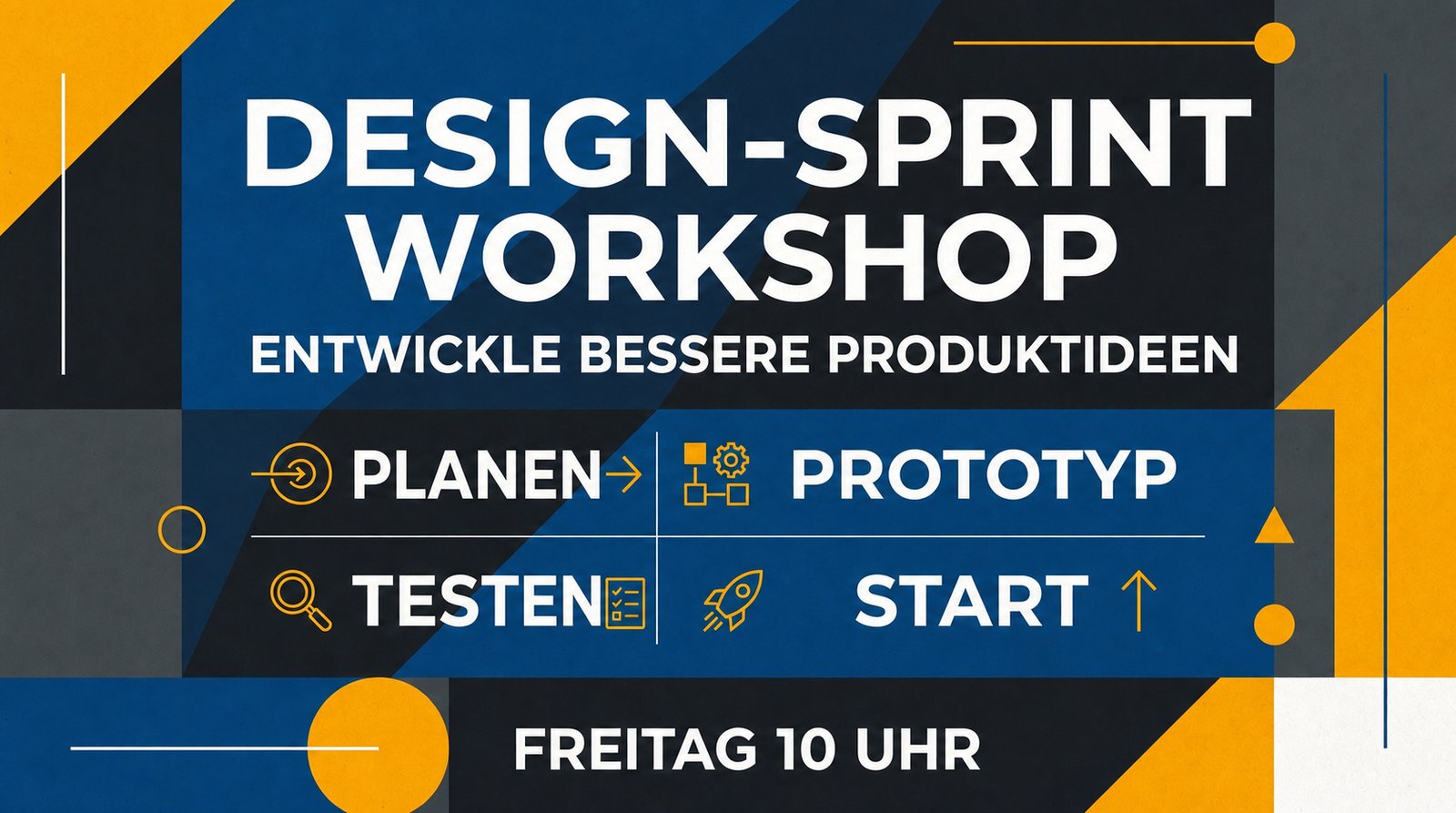

Translate Text Inside Images
Use image translator when the words are part of the visual itself, such as labels, callouts, captions, badges, menus, posters, or infographic blocks.
Create AI video drafts directly in Img2Vid. Choose a compatible model, review price and plan eligibility, then generate in the same workspace.

Translate text in infographics and other images while preserving the original layout and visual style.
Choose the language to translate the image text into.
Source Image*
Upload an infographic or image that contains text to translate.
Max 10MB per file
source_image: requires at least 1 file(s)
Checking app access…

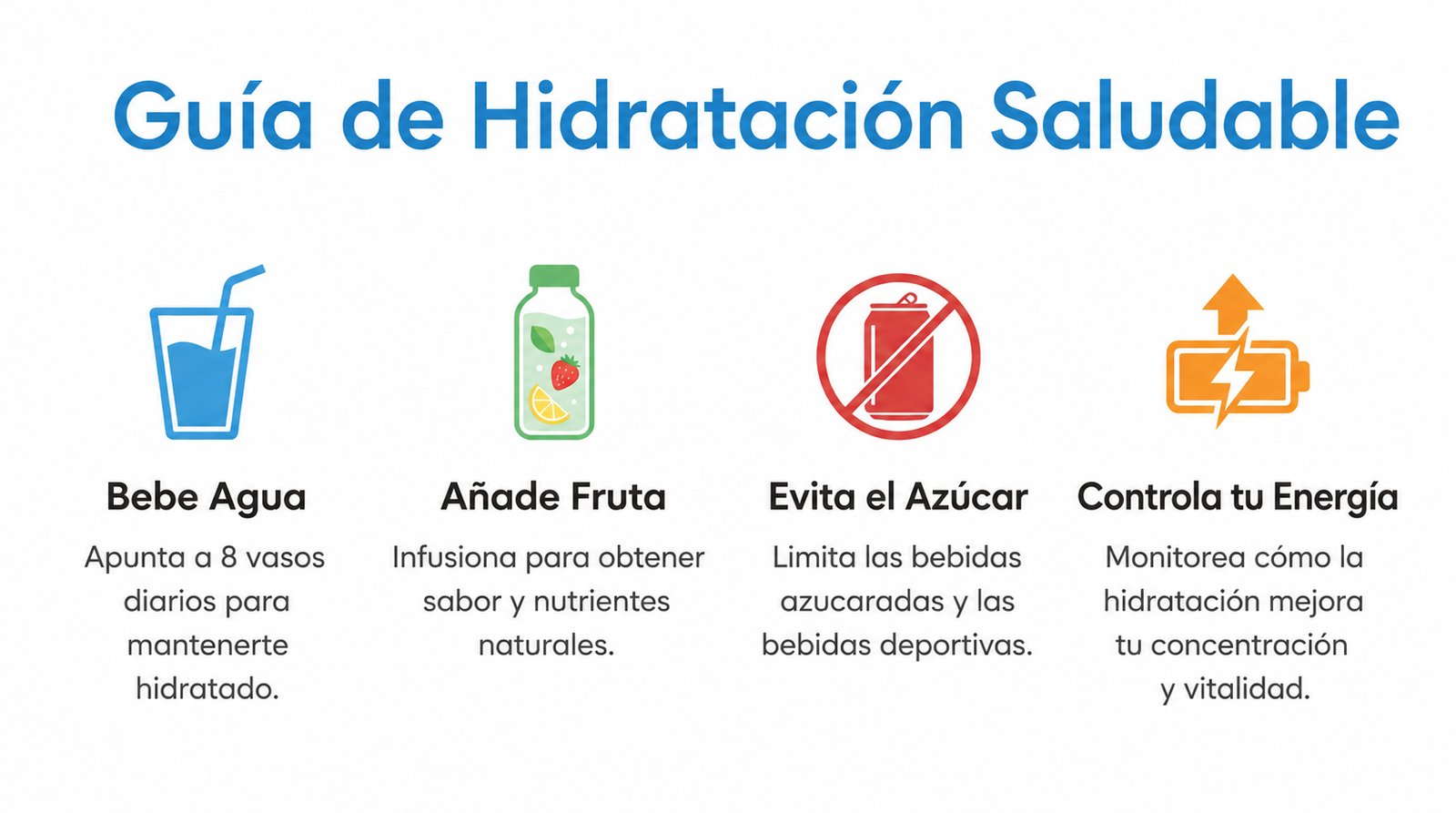
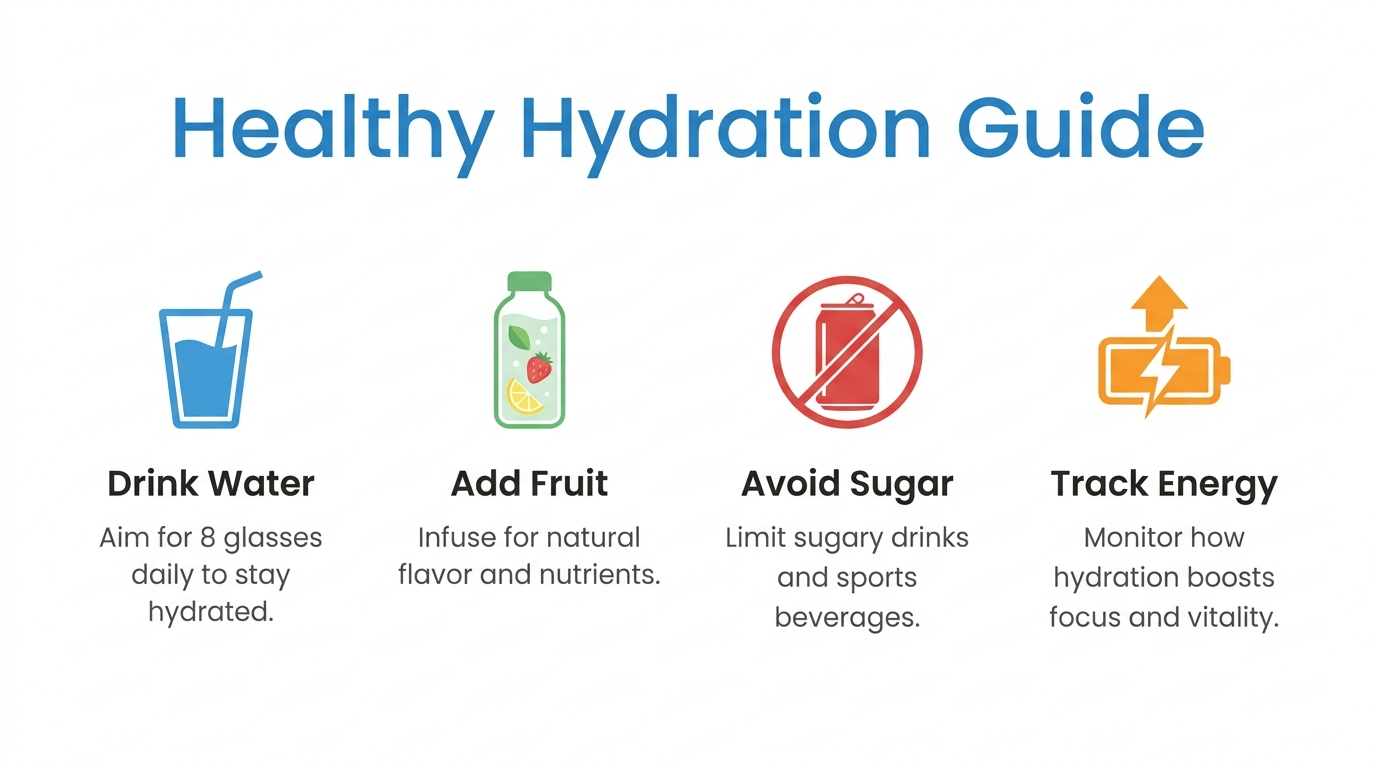
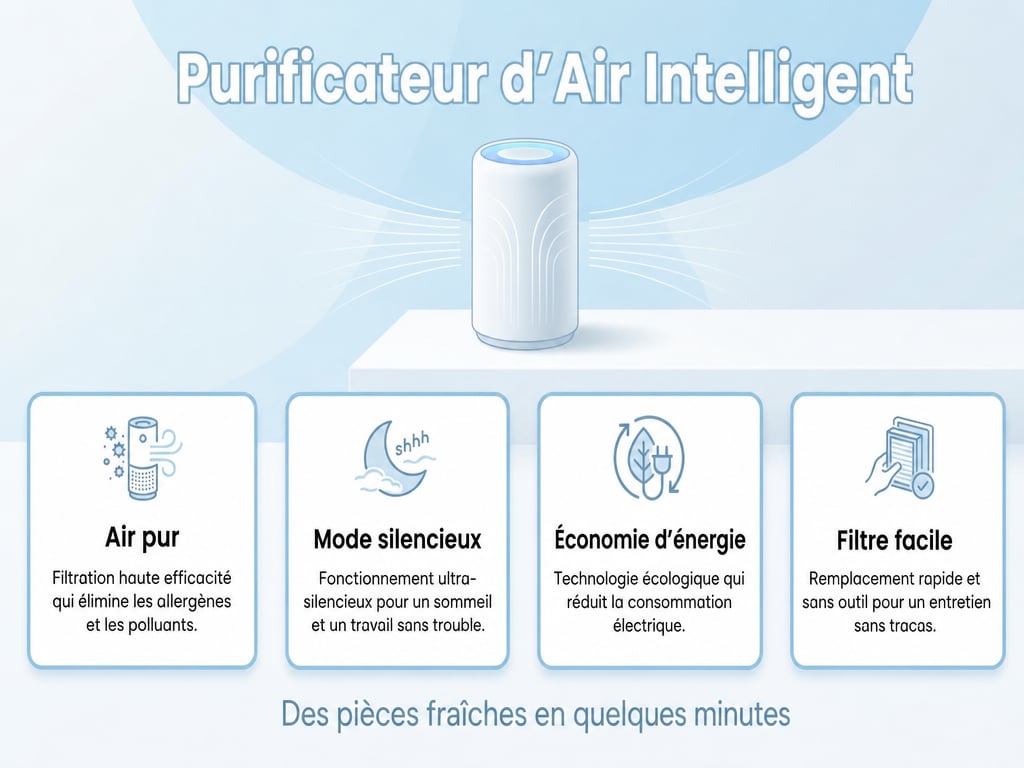
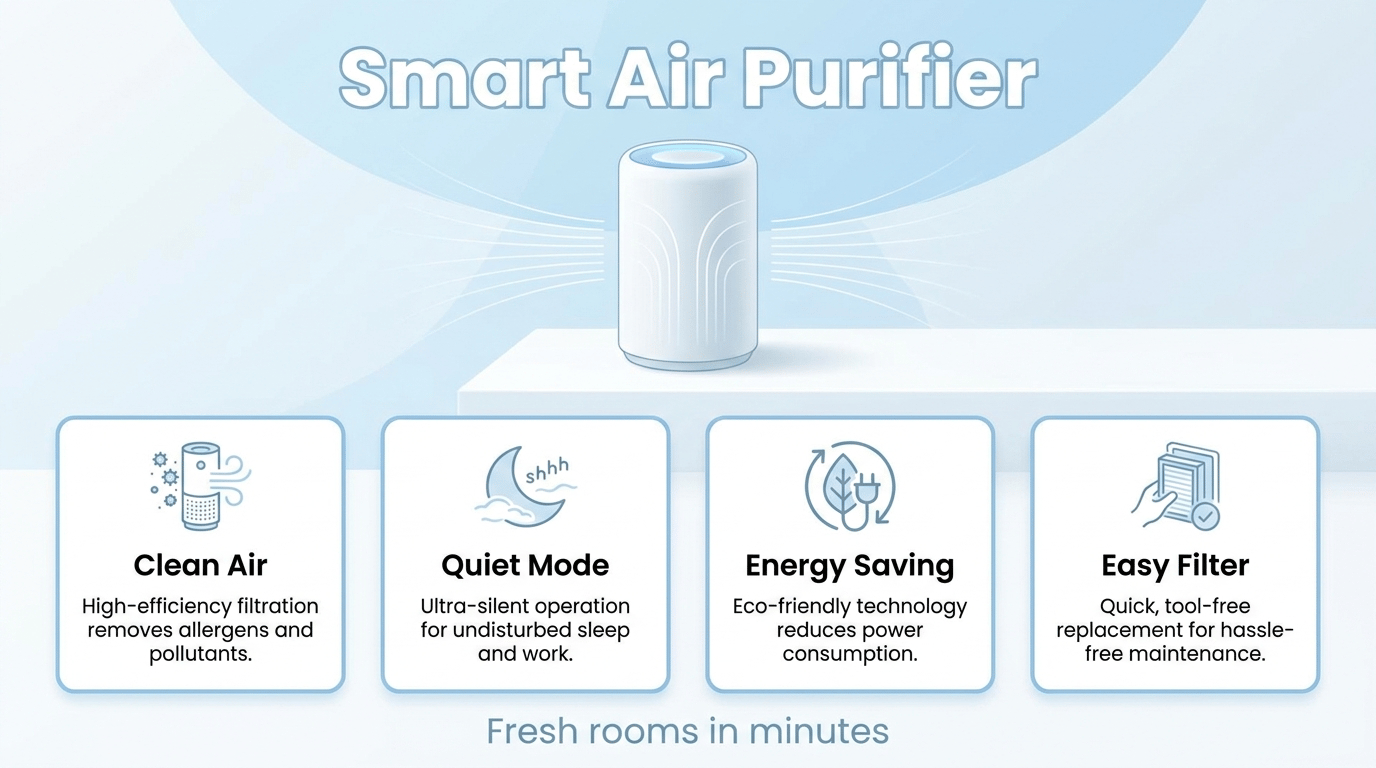
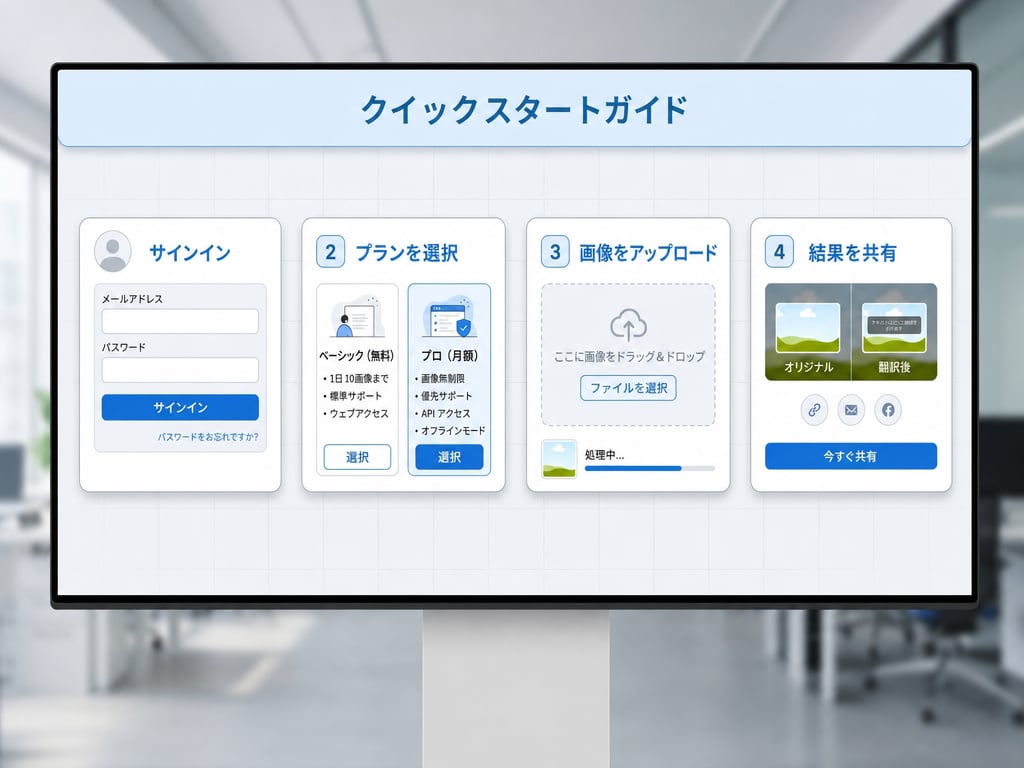
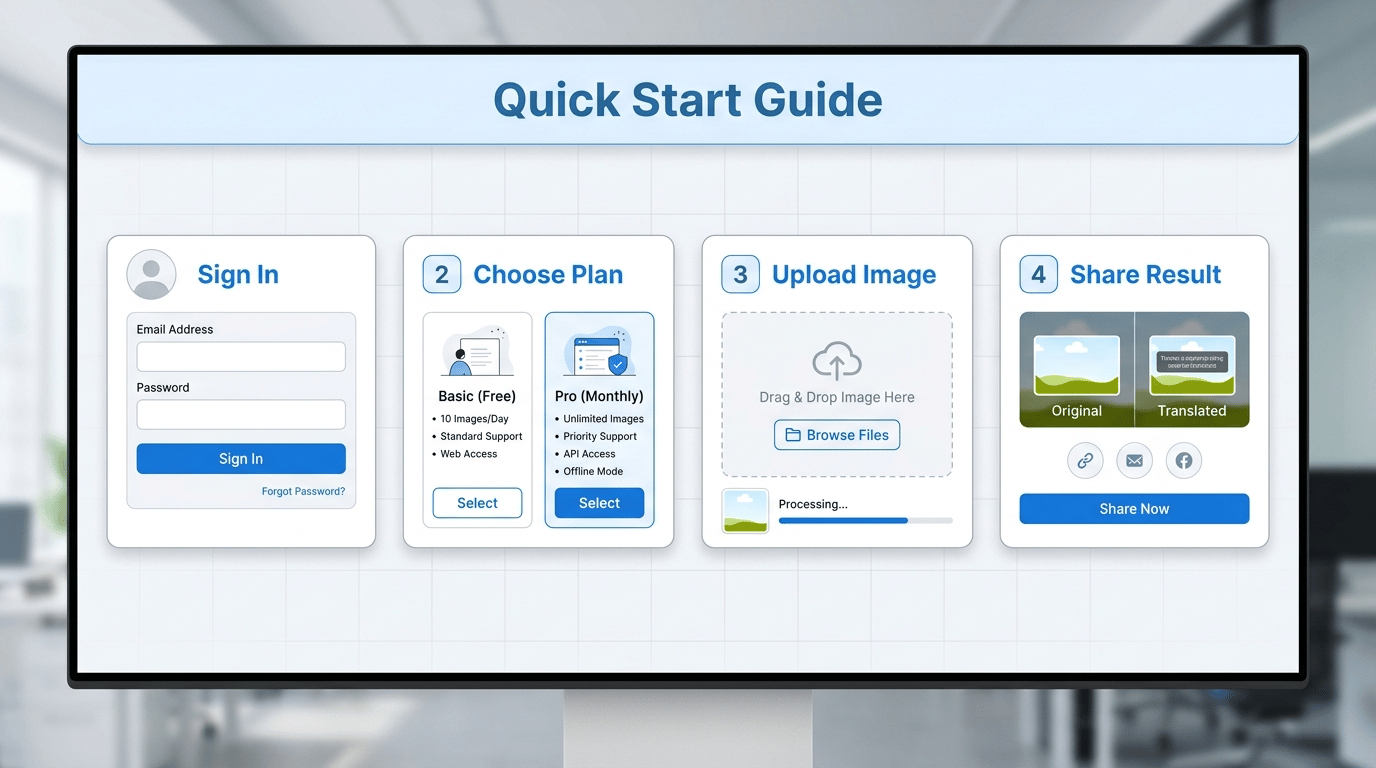
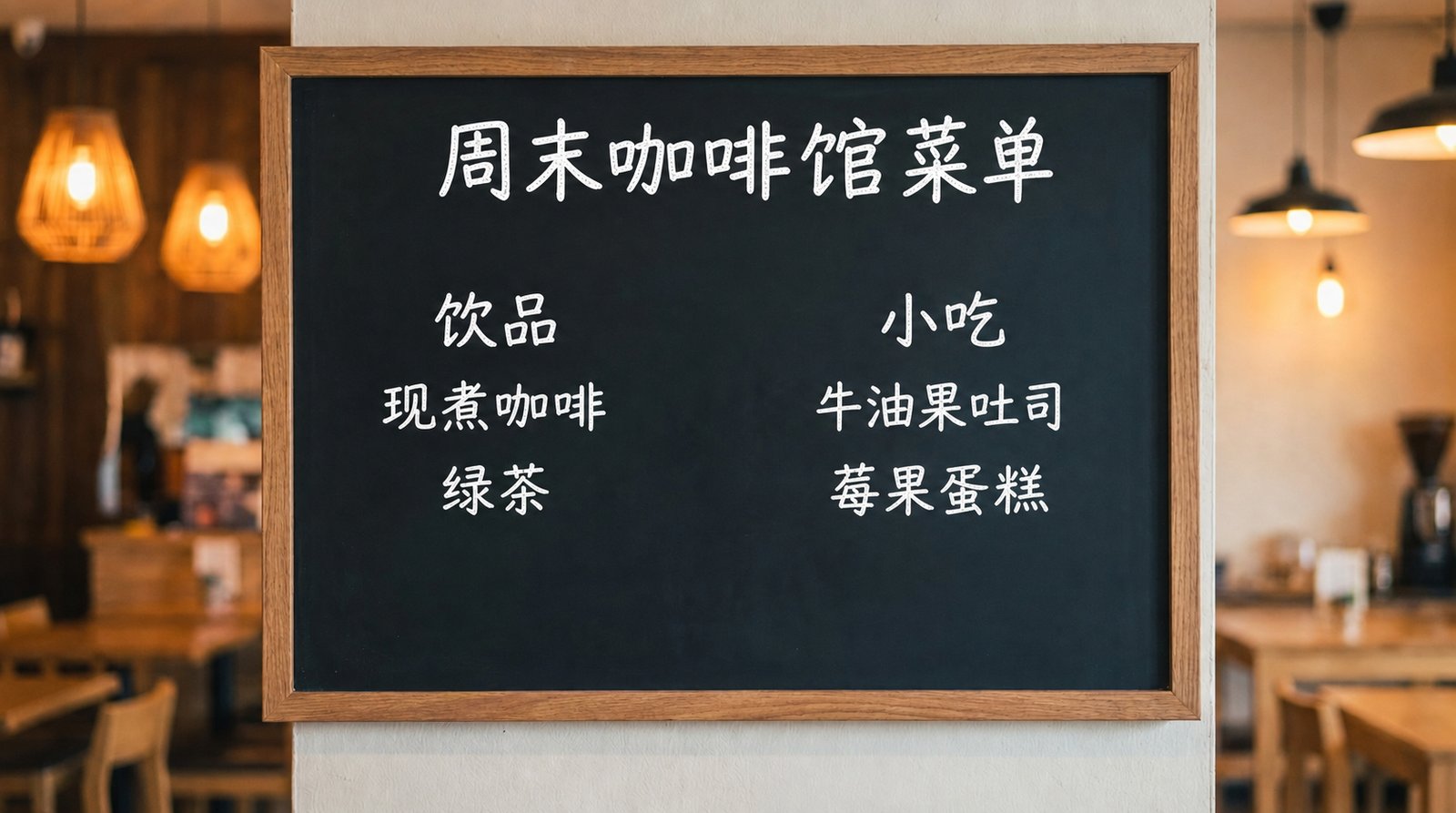
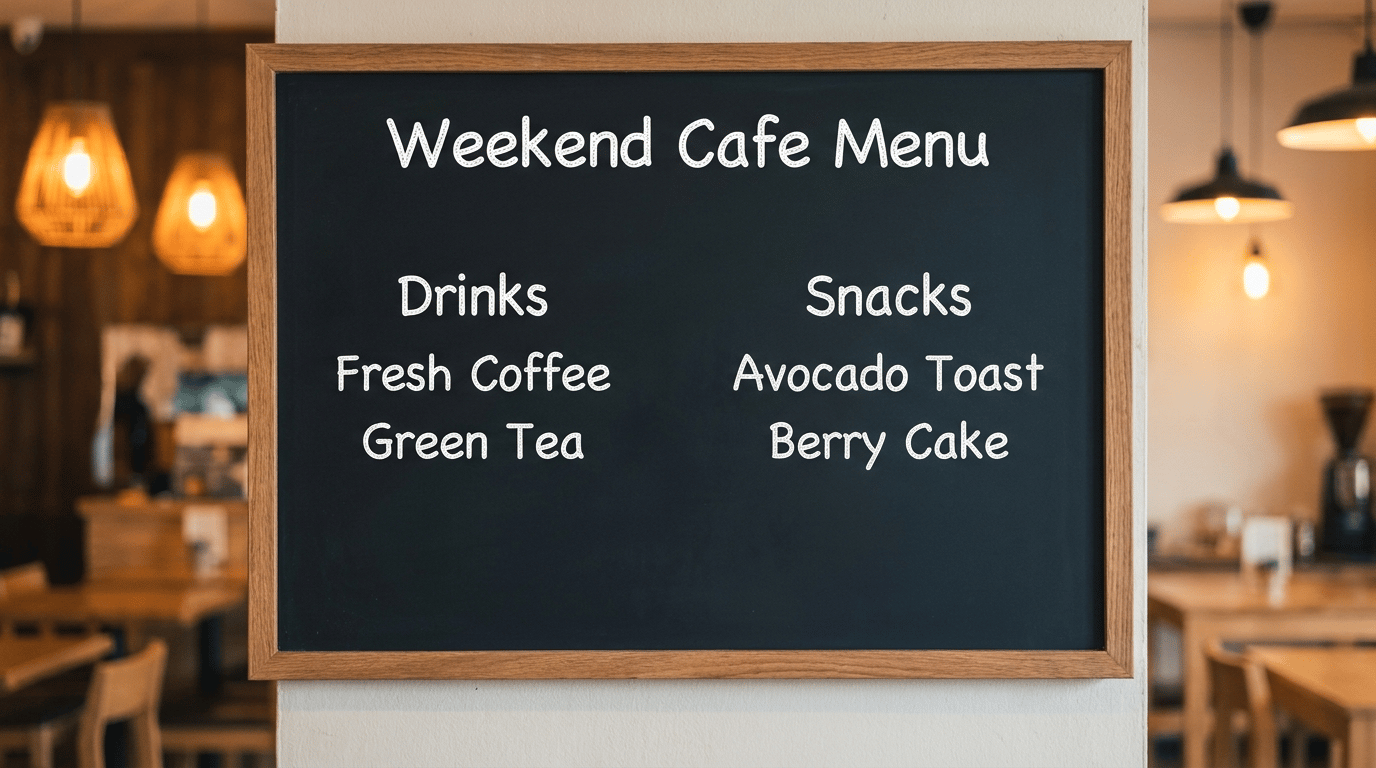
These examples use real Img2Vid outputs: each source image was generated first, then passed into the Image Translator app with a target language. Drag across each card to compare the original English visual with the translated result.
Translation task
Translate a clean health infographic from English to Spanish while preserving icons, spacing, and the original visual hierarchy.
Overview
Image translator turns one uploaded image into a translated visual. Instead of extracting text into a separate paragraph, the app is designed for visual translation: upload an infographic, screenshot, product image, poster, menu, or labeled graphic, choose the target language, and generate a new image that keeps the original design intent intact.
Use image translator when the words are part of the visual itself, such as labels, callouts, captions, badges, menus, posters, or infographic blocks.
The app accepts one source image in common image formats, so the workflow stays focused on source-to-result image translation.
Select the language you want the image text translated into. The language picker follows the same broad language list used by Img2Vid's video translation workflow.
The prompt asks the model to translate the infographic text without changing other image details, which is useful when layout, icons, product context, and background still matter.
Image translation can be sensitive to small text, dense layouts, brand names, and script length. Always review the final result before using it in ads, product pages, or public documentation.
Use the app when a plain OCR translator would lose the relationship between the text and the image it belongs to.
Use Cases
Search demand around image translator usually comes from people who already have a finished visual and need the words to work for another audience without rebuilding the whole asset in design software.
Translate charts, process diagrams, learning cards, comparison graphics, and social infographics while keeping the visual hierarchy readable.
Localize feature callouts, packaging mockups, product badges, and marketplace visuals where icons, product photos, and label placement must stay connected.
Create translated draft versions of posters, promo cards, banners, and ad creatives before a designer does final brand review.
Translate tutorial screenshots, onboarding images, app screens, and help-center visuals so readers can understand the interface in context.
Turn text-heavy photos into more readable translated images when the position of each word matters to understanding the scene.
Use image translator to create a fast localized draft, then hand the result to a native speaker, designer, or brand reviewer for final polish.
How To Use
The generator above is the actual Image Translator app. Use it when you have a source image ready and want Img2Vid to generate a translated image output.
Choose a JPG, PNG, or WebP image with visible text. Clear contrast, readable lettering, and enough resolution make translation and replacement easier.
Pick the language you want the visible text translated into. Short labels, titles, and callouts usually fit better than long paragraphs.
Review translated text, layout fit, icons, logos, numbers, product names, and any small text before publishing or sharing the final image.
Layout Preservation
OCR is useful when you only need extracted text. Image translator is more useful when the translated words need to stay inside the original visual context.
Infographic labels, product badges, menu sections, and UI captions often make sense only because of where they sit in the image.
A phrase that fits in English may become longer in Spanish, German, French, or another target language. Leave breathing room when possible.
The app prompt asks the model not to change other image aspects, but you should still verify icons, logos, certification marks, and product details.
Visual context can help the translation fit the image: a food menu, app screen, product card, or education diagram may need different wording.
This app is designed for a focused single-image translation workflow, not batch document translation or PDF processing.
Use the result to save production time, then review important terms with a native speaker or domain expert when accuracy matters.
Best Practices
The quality of the source image matters. These checks help the app understand text, preserve layout, and avoid unnecessary visual changes.
Small, blurry, curved, handwritten, or low-contrast text is harder to translate cleanly. Use a sharper source image when possible.
Dense infographics with many tiny labels leave less space for translated text. If you control the design, simplify crowded areas first.
Dates, prices, units, brand names, people names, and technical terms deserve manual review because a small mistake can change meaning.
Scripts with different direction, density, or character width can affect spacing. Review layout fit carefully after translating into those languages.
If a logo or certification mark must remain untouched, check it closely in the result and avoid treating it as translatable body text.
For ads, packaging, legal notices, education, medical, or customer-facing product material, run a final review before launch.
FAQ
Common questions before using Img2Vid Image Translator for infographics, screenshots, product images, menus, posters, and visual localization.
Start Translating
Upload an image, choose the target language, and create a translated visual draft in Img2Vid.